Start with the device library
Search device models and port definitions in your library. Review equipment candidates before adding them to a project.
MCP · AI workflows
Connect a compatible AI assistant through MCP (Model Context Protocol). Give it access to Arclyn’s engineering tools to read project data and help you draw, check, and export.
Search device models and port definitions in your library. Review equipment candidates before adding them to a project.
Add devices, connect ports, and update drawings in visible steps. Review the result in Arclyn and undo individual steps when needed.
Check project references, port connections, signal compatibility, and routing issues to support your engineering review.
Use local MCP to keep an editable .avpoj project and export DXF drawings, equipment lists and cable schedules. For Copilot Studio, save and export in the desktop app.
MCP in practice
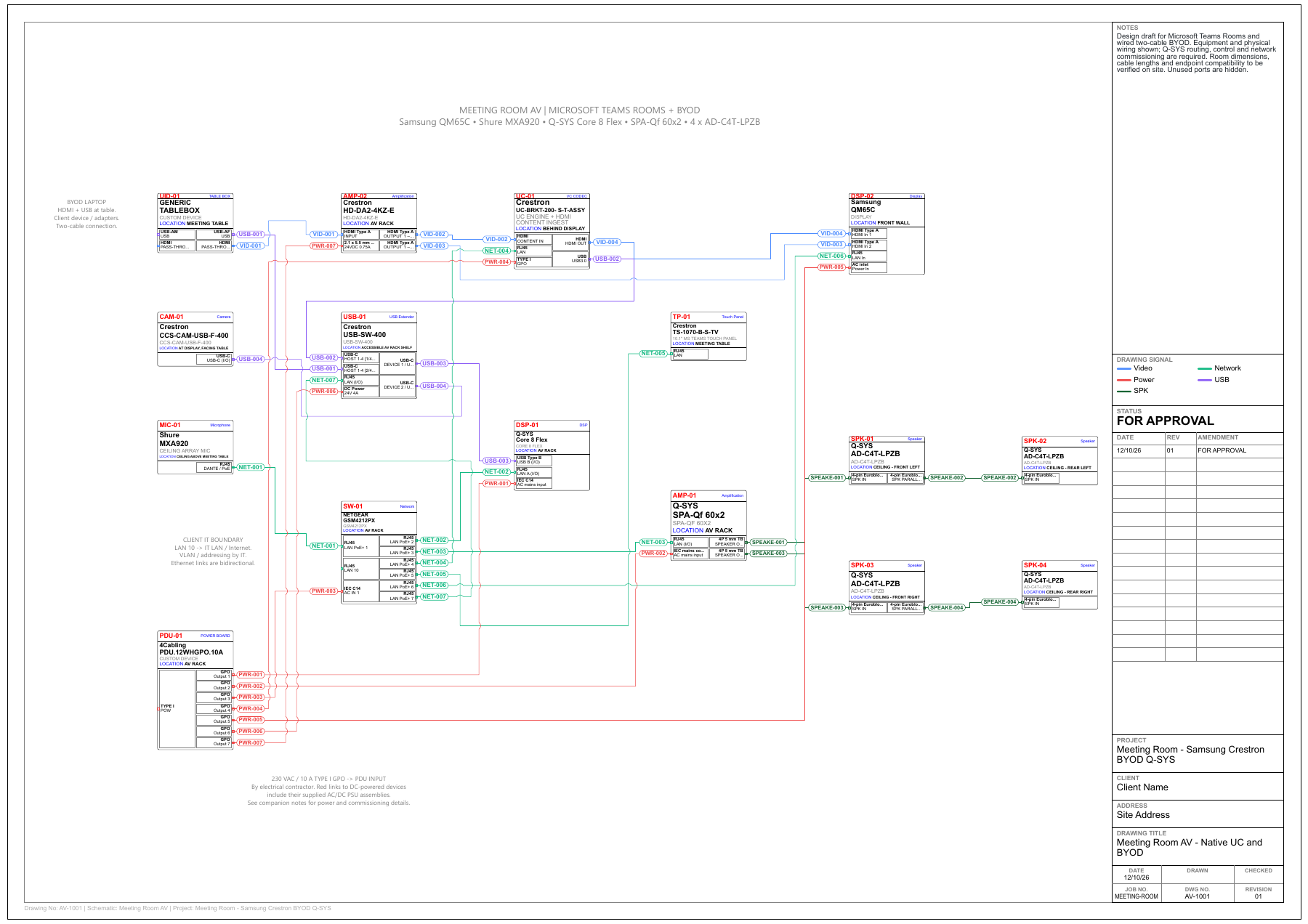
See the Codex MCP test in Arclyn, then inspect the original PDF for a Microsoft Teams Rooms and wired BYOD system.
This PDF is the original AI-generated result, with no human intervention in producing the schematic and no manual layout or correction afterwards. It is not yet perfect: the layout still needs human refinement before project submission.
The test shows Codex connecting to Arclyn, reading the open project and searching real equipment models and port definitions.
The conversation shows AI interpreting the meeting-room requirements, proposing models and asking clarifying questions. These screenshots document the test workflow; the PDF below shows the untouched output.
AV-1001 · Revision 01 · One A1 sheet. Samsung display, Crestron UC and BYOD equipment, Shure microphone and Q-SYS audio system, with signal connections and a title block.
100% AI-generated · No human intervention
Arclyn includes connection setup for Codex and Claude Desktop, plus a dedicated Microsoft Copilot Studio interface. This describes the current application implementation; use a release with these settings.
| Software | Built into Arclyn | Arclyn connection path | Where to configure | Available operations |
|---|---|---|---|---|
| Codex | Automatic configuration | Local MCP · stdio | Settings → AI Assistant Connection → Codex | Local MCP: library search, project reading, incremental drawing edits, validation, file imports and delivery exports. |
| Claude Desktop | Automatic configuration | Local MCP · stdio | Settings → AI Assistant Connection → Claude Desktop | Local MCP: library search, project reading, incremental drawing edits, validation, file imports and delivery exports. |
| Microsoft Copilot Studio | Dedicated interface · deployment required | Remote · Streamable HTTP | Settings → AI Assistant Connection → Microsoft Copilot Studio | Open project only: read, library search, preview and edit, validate, undo/redo, and canvas navigation. Save and export in the Arclyn desktop app. |
Codex / Claude Desktop: configure in Arclyn, then fully quit and reopen the AI client. Arclyn provides configuration viewing, copying, backups and an MCP service test. Passing that test does not confirm the client has loaded the tools.
Copilot Studio: Arclyn provides Streamable HTTP and API key authentication. Configure your own HTTPS gateway or tunnel to the local interface and keep an activated Arclyn editor and project open. Entering a URL does not establish cloud connectivity.
Other stdio clients may be configured manually in their own format; they are not listed as built-in Arclyn integrations. Claude Desktop automatic setup does not configure Claude Code or the web app.
Requires a configured MCP-compatible AI client and an activated, running version of Arclyn with MCP support. AI service comes from your chosen client. An engineer must review designs and deliverables.